Turn a post you already wrote into an image, in one click
Paste a caption and get an image styled like a real X, LinkedIn, Bluesky, Mastodon, Threads or Facebook post. Nine styles, free tools with no signup, and a Make a card button inside the composer.

Quick answer
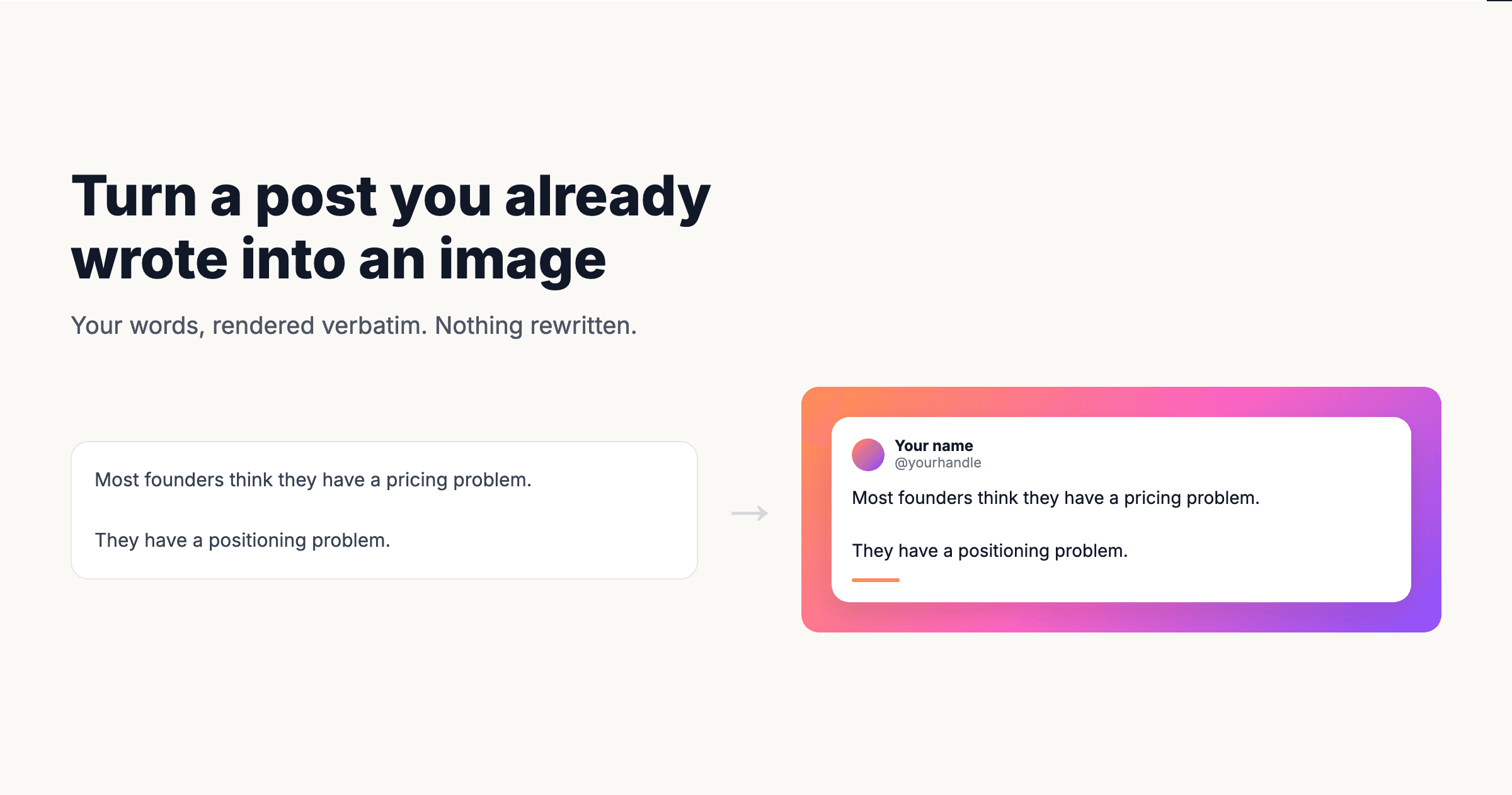
Schedulala can now turn a written post into an image. Paste a caption, pick a style, and get a card you can post anywhere. Nothing is rewritten and no AI touches your words. There is a Make a card button in the composer that attaches the result to the post you are already writing, and five free tool pages that need no account at all.
- •Nine styles: replicas of X, LinkedIn, Bluesky, Mastodon, Threads and Facebook posts, plus two unbranded text styles and a plain card with no logo
- •A Make a card button in the composer fills in your name, handle and profile picture from a connected account, then attaches the image to your post
- •A Text to card tab that lists every post you published without an image, so an old post is one click from becoming a card
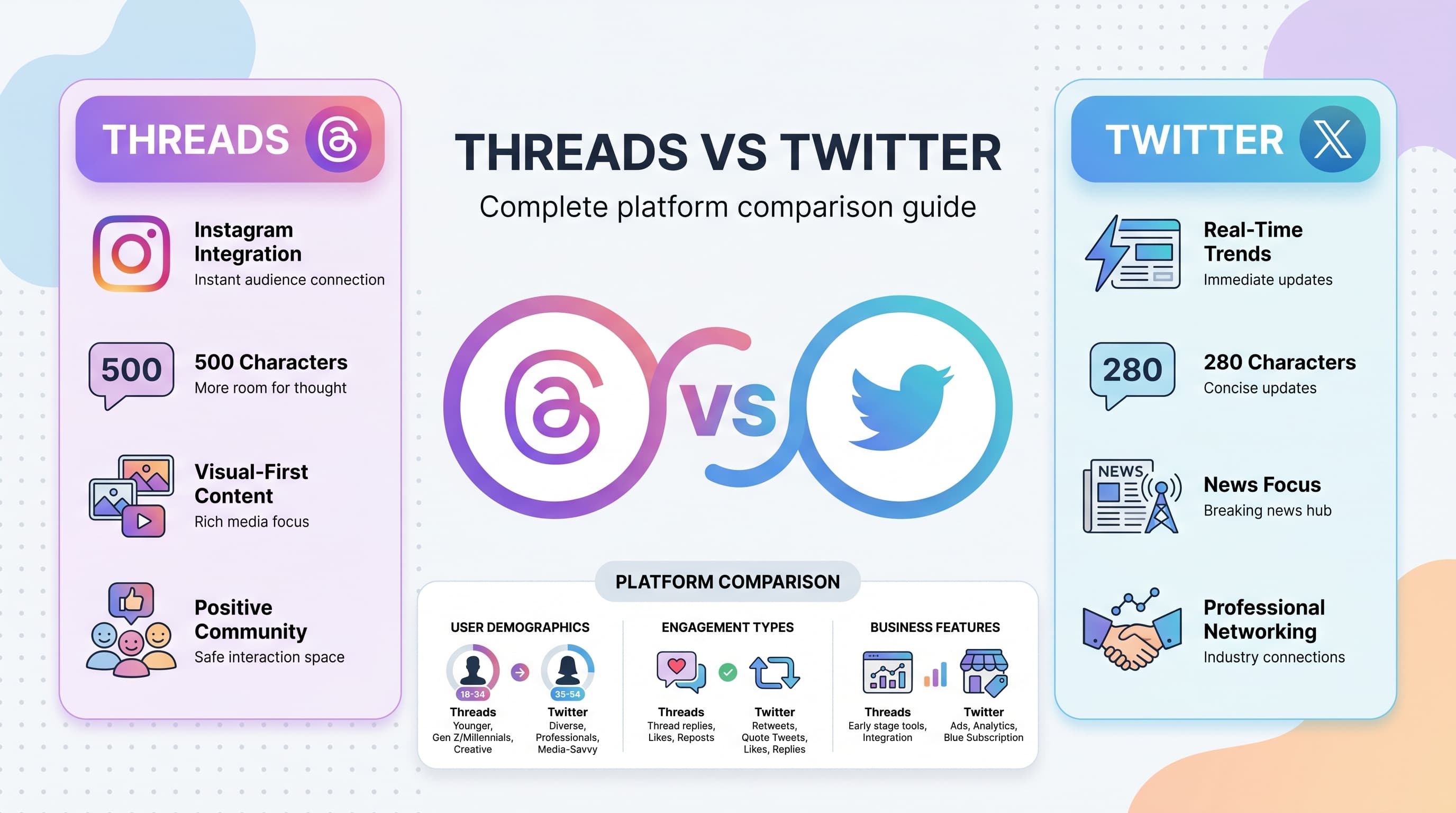
- •Live character counters per platform: 280 for X, 300 for Bluesky, 500 for Threads, 3,000 for LinkedIn
- •Exports at 1080px wide in 1:1, 4:5 or 9:16, so the same card fits a feed or a story
- •Free tool pages need no signup: post to image, tweet to image, and one each for Bluesky, Threads and LinkedIn
If you write well on Bluesky, Threads or LinkedIn, none of that writing reaches the people following you on Instagram or TikTok. Those feeds barely show a caption. The work is good, it just has nowhere to go.
So we built the boring fix. Paste the post you already wrote, pick how it should look, and get an image you can put anywhere.
Try Schedulala for free
Schedule posts to Bluesky, Twitter, and 8 other platforms from one dashboard.
Get started for free→What shipped
Nine ways to render the same words
The same caption can come out looking like a real post on six networks, or like nothing in particular. Your text is never touched.
- Platform replicas — X, LinkedIn, Bluesky, Mastodon, Threads and Facebook, with the right chrome for each
- Generic — a clean card with your name and photo and no network logo
- Text only and Quote — no card at all, just the words on a colour
Which one you pick is a real decision
A branded replica is the right choice when the point is to move an audience: the X chrome is the invitation, and it says come follow me there. An unbranded card is the right choice when you simply want good writing to travel. Posting a card carrying a rival network's logo into an Instagram feed puts a competitor's mark in front of their users, and plenty of creators would rather not.
A Make a card button in the composer
Write your caption, click Make a card, and the studio opens already filled in. Your name, handle and profile picture come from whichever account you selected, so the card reads as yours rather than a mock-up. Attach it and the image joins your post like any upload, going out to every platform you picked.
A Text to card tab, for posts you already published
The composer button only helps while you are writing. The moment you decide a post deserves to be an image is usually later, while looking back at something that did well. So there is now a Text to card tab in the dashboard: the generator sits on top, and underneath it is every post you published without an image. Click one and its words load straight into the card.
Counters that know the platform
The card renders any length, but the counter tracks what the network actually allows, so you know whether the same text would fit as a post.
- X — 280 characters, or 4,000 with Premium
- Bluesky — 300 characters
- Threads — 500 characters
- LinkedIn — 3,000, though it hides everything past roughly 200 behind a see more link. That truncation is a good reason to use an image in the first place.
Five free tools, no signup
Every one of these works without an account, with no limit on downloads.
Sizes and where they go
Everything exports at 1080px wide, which is the native width for Instagram, Threads and LinkedIn image posts.
- 1:1 — the safe default for most feeds
- 4:5 — takes up more vertical space in an Instagram feed, so more room for readable text
- 9:16 — fills a story or a reel cover
- Snug — hugs the card with a thin border, for when you want no background at all
One honest limit: a long post shrinks to fit, and past a certain length the type gets small on a phone. If a post is really long, split it across a few cards rather than cramming it into one.