Content Calendar Template for Google Sheets: A Free, Step-by-Step Build Guide
Build a free content calendar template in Google Sheets with our step-by-step guide, including columns, formulas, and tabs you can copy today.


You've got content ideas scattered across a notes app, three Slack threads, and a sticky note that fell behind your desk in March. Meanwhile, your Instagram caption for tomorrow still says "TODO: write this." A content calendar fixes this, and Google Sheets is still the fastest way to build one without paying for anything. Learn more about scheduling across platforms.
This guide walks through building a real, usable content calendar template in Google Sheets from scratch. Not a vague "just make columns for each platform" suggestion, but the exact columns, tabs, formulas, and formatting that make a spreadsheet calendar actually survive past week two. See our telegram engagement tips get guide.
Why Google Sheets still works for content planning
Every few months a new app promises to replace the spreadsheet. Most people end up back in Sheets within a month, because it's flexible, it's free, and everyone on your team already knows how to use it. No onboarding, no login requests, no "wait, how do I add a column here.". Learn more about youtube shorts ideas 100.
A spreadsheet is also the right tool at a specific stage: when you're a solo creator, a two-person marketing team, or a small business that posts a handful of times per week across two or three platforms. It gets harder to manage once you're juggling a dozen accounts, multiple approval stages, or a team spread across time zones, but we'll get to that later. Try our best time to post on instagram.
If you've searched for a content calendar template for Google Sheets, you're probably trying to solve one of three problems: you don't know what to post next, your team keeps duplicating or missing posts, or you want visibility into your content mix (is it 80% promotional and 20% value, or the other way around). This template handles all three. See our best time to post on tiktok guide.
Try Schedulala for free
Schedule posts to Bluesky, Twitter, and 8 other platforms from one dashboard.
Get started for free→What a good content calendar template actually needs
Most templates you'll find online are either too sparse (just a date and a caption box) or too bloated (47 columns nobody fills in). Here's what earns a spot in your sheet, grouped by purpose.
1. Planning columns
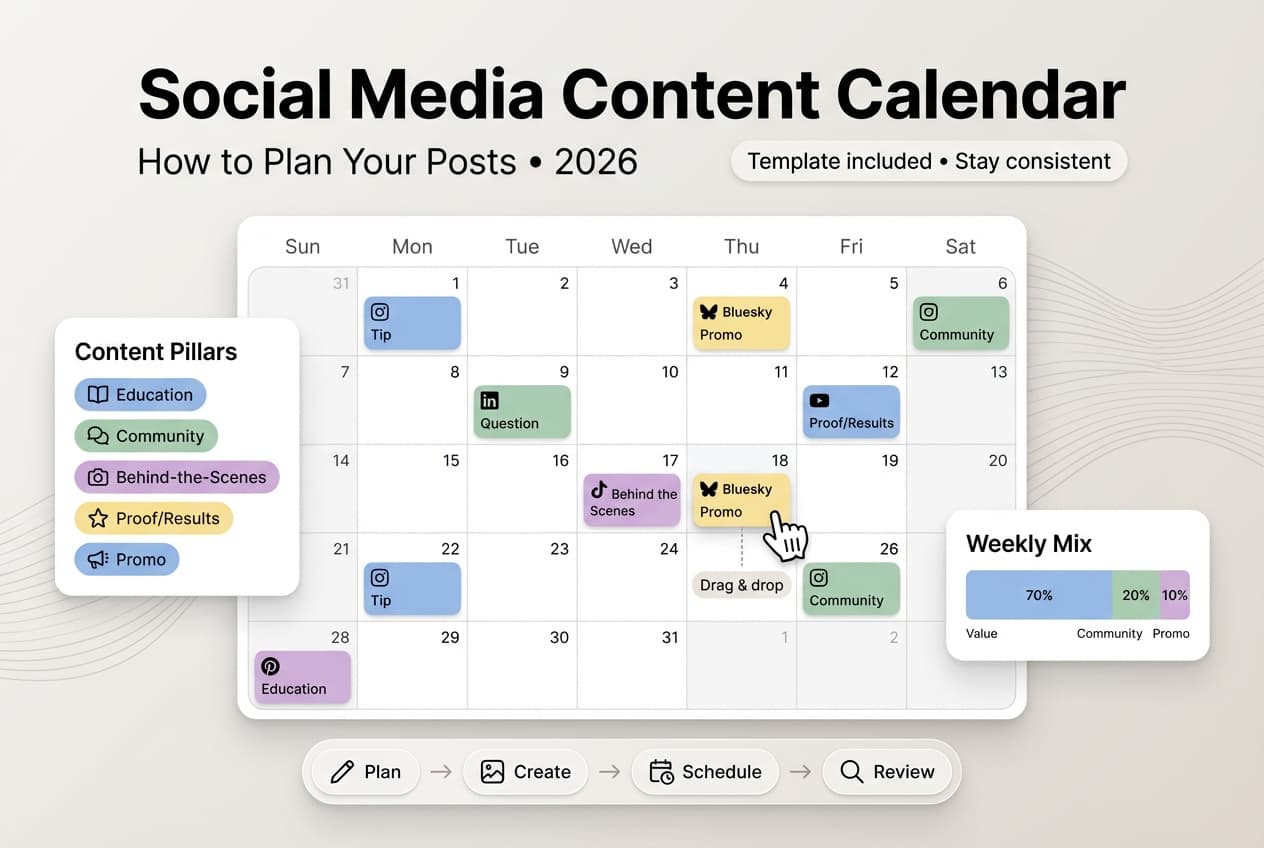
These are the columns you fill out before anything gets written: Post Date, Platform, Content Pillar/Theme (educational, behind-the-scenes, product, UGC, etc.), and Campaign/Tag so you can filter posts tied to a specific launch or promotion.
Content Pillar is the one people skip and then regret. Without it, you have no way to spot-check whether you're actually hitting the content mix you planned, you're just hoping.
2. Production columns
Caption/Copy, Hashtags, Asset Link (a column linking out to the actual image, video, or Canva file in Drive), and CTA (what you want the viewer to do: comment, click link in bio, shop now).
Keep the Asset Link column pointed at a shared Drive folder, not individual desktops. Half the content calendar chaos I've seen comes from someone's finished graphic living only on their laptop.
3. Workflow columns
Status (Idea, Drafting, In Review, Approved, Scheduled, Published), Owner/Assignee, and Reviewer. This is where a spreadsheet calendar earns its keep for teams, because status and ownership create accountability without a single meeting.
Use a dropdown (Data > Data Validation) for Status rather than free text. Typos like "aproved" and "Approved " with a trailing space will quietly break any filters or formulas you build later.
4. Performance columns (optional but recommended)
Date Published, Link to Live Post, and a few metrics columns (Reach, Engagement, Clicks). You don't need to fill these in real time, but a monthly batch update takes ten minutes and gives you a record of what actually worked.
Step-by-step: build the template in Google Sheets
1. Set up your tabs
Create four tabs: Content Calendar (the main planning grid), Content Ideas Bank (a running list of ideas that haven't been scheduled yet), Post Archive (published posts with performance data), and Dropdown Lists (a hidden tab that stores your Status, Platform, and Pillar options, which feeds your dropdown menus).
Keeping a separate Ideas Bank matters more than it sounds. Ideas that live inside the main calendar grid get buried under scheduled rows and never resurface. A dedicated tab means you always have a backlog to pull from when you're staring at a blank Tuesday.
2. Build the main calendar grid
In your Content Calendar tab, row 1 becomes your header row with the columns listed above: Post Date, Day of Week, Platform, Content Pillar, Caption, Hashtags, Asset Link, CTA, Status, Owner, Campaign Tag, Date Published, Link to Live Post.
Use a formula for Day of Week so you never have to type it manually: \`=TEXT(A2,"dddd")\` referencing your Post Date column. This also makes it obvious at a glance when you've accidentally double-booked two posts on a Sunday.
3. Add dropdowns for consistency
Select your Platform column, go to Data > Data Validation, and set it to a dropdown list referencing your Dropdown Lists tab. Do the same for Status and Content Pillar. This single step is what separates a calendar that stays organized from one that turns into free-text chaos by week three.
4. Color-code by status or platform
Use conditional formatting (Format > Conditional formatting) to color each row based on Status: gray for Idea, yellow for In Review, green for Scheduled, blue for Published. At a glance, you can tell what still needs attention without reading a single word.
If you manage multiple platforms, an alternative is color-coding by platform instead, which makes it easy to spot if you're neglecting one channel while over-posting on another.
5. Create a filter view for each team member
Go to Data > Filter views > Create new filter view, and set one up per Owner. This way each person on your team can look at only their own rows without altering what anyone else sees. Regular filters change the view for everyone with the sheet open, which causes its own kind of chaos in shared files.
6. Build a simple monthly summary
Add a small summary box at the top of the sheet using COUNTIF formulas, for example \`=COUNTIF(D2:D200,"Educational")\` to count how many educational posts are scheduled this month per platform. This gives you a real-time check on whether your content mix matches your strategy instead of just your gut feeling.
Sample column structure you can copy
If you want a quick reference for setting up your own sheet without reading the step-by-step again, here's a condensed version of the columns and what goes in each.
| Column | Example value | Why it matters |
|---|---|---|
| Post Date | 11/18/2026 | Anchors the whole row, drives Day of Week formula |
| Platform | Dropdown list, prevents typos across 12 possible channels | |
| Content Pillar | Educational | Lets you audit content mix with COUNTIF |
| Caption | Full draft text | Keep it final-draft ready, not a rough outline |
| Asset Link | Drive folder link | Points to the actual image/video file |
| Status | In Review | Drives conditional formatting and filter views |
| Owner | Jordan | Used for per-person filter views |
| Date Published | 11/18/2026 | Feeds your Post Archive tab for reporting |
Where a spreadsheet starts to crack
I like Google Sheets for content planning, but I'd be lying if I said it scales cleanly. It's genuinely great for solo creators and small teams managing a handful of accounts. It gets rough once you add more platforms, more approvers, and actual publishing into the mix.
The core issue is that a spreadsheet plans content, it doesn't publish it. Everything after "Status: Approved" still has to happen manually: opening each app, uploading the asset, pasting the caption, hitting publish, at the right time, on the right account, twelve times over if you're active across every platform.
| Google Sheets | Dedicated scheduling tool (like Schedulala) | |
|---|---|---|
| Cost | Free | Paid plans starting at $29/month |
| Planning and ideation | Excellent | Good, but built for scheduling first |
| Approval workflows | Manual, via comments/status column | Built-in review steps on Team and Agency plans |
| Actual publishing | Manual, platform by platform | Automated, scheduled posts go out on their own |
| Post limits | Unlimited rows | Unlimited scheduled posts on every plan |
| Best for | Solo creators, small teams, early-stage planning | Teams managing multiple accounts and platforms daily |
There's no wrong answer here, it depends on where you are. A lot of Schedulala customers still keep a Google Sheet for brainstorming and content pillar tracking, then schedule the actual posts in the platform once a caption is finalized. The spreadsheet handles strategy, the tool handles execution.
Common mistakes people make with content calendar spreadsheets
- Skipping the Content Pillar column. Without it, you can't tell if you're drowning your audience in promotional posts, which is the fastest way to tank engagement.
- Letting one person own the whole sheet. If only one teammate knows how the formulas and dropdowns work, the system collapses the week they're on vacation. Document it, or keep it simple enough that anyone can pick it up.
- No Ideas Bank tab. Teams that plan and schedule in the same tab run out of ideas fast because there's nowhere for half-formed thoughts to live until they're ready.
- Free-texting the Status column. Dropdowns exist for a reason. Typos break filters and conditional formatting silently, and nobody notices until a post gets missed.
- Treating the calendar as a finished caption vault, not a strategy tool. The calendar should tell you what you're posting and why. If it's just a list of captions with dates next to them, you've built a to-do list, not a content strategy.
- Forgetting time zones. If your team or audience spans regions, add a column for publish time in the audience's local time zone, not just your own. A 9am post from your desk might land at 2am for half your followers.
A simple monthly workflow that keeps the calendar alive
A template is only as good as the habit built around it. Here's a routine that keeps the sheet from going stale, which is the actual reason most content calendars die within six weeks.
Week 1: Plan the month
Block 45 minutes to pull ideas from your Ideas Bank tab and assign dates, platforms, and pillars for the full month. Don't write captions yet, just get the skeleton down so you can see gaps and overlaps.
Weekly: Draft and review
Set a recurring 30-minute block each week to draft captions for the upcoming seven days and move Status from Drafting to In Review. Whoever approves content checks their filter view once a week, not on a rolling basis.
Daily: Publish or schedule
This is where you either manually post from the sheet or, better, feed the approved content into a scheduling tool so it goes out automatically. Either way, update Status to Published and log the live link once it's up.
Monthly: Review performance
Move published rows to your Post Archive tab with their performance numbers filled in. Spend 20 minutes looking at which pillars and platforms performed best, and let that actually change next month's plan instead of just logging it and moving on.
Scaling past the spreadsheet
At some point, usually somewhere between 3 and 10 active social accounts, the spreadsheet stops being the bottleneck in planning and starts being the bottleneck in execution. You've got great content sitting in the Approved column, and the only thing standing between it and your audience is someone manually logging into six apps.
Schedulala covers 12 platforms, including Instagram, TikTok, Twitter/X, LinkedIn, YouTube, Facebook, Threads, Bluesky, Pinterest, Telegram, Mastodon, and Google Business Profile, and every plan comes with unlimited scheduled posts, so there's no awkward moment where you run out of room mid-month. The Personal plan is $29/month for 10 social accounts, Team is $49/month for 25 accounts, and Agency is $99/month for 100 accounts. Accounts are a flat count you can split however you want across platforms, so if you run five Instagram accounts and three LinkedIn pages, that's just 8 of your 10 on Personal, no sub-limits or weird bundling.
There's no free tier, but there is a 7-day free trial if you want to test the migration from spreadsheet to scheduled, automated publishing before committing. Keep the Google Sheets template for strategy and ideation (it's genuinely good at that), and let a scheduling tool handle the part where content actually has to go live at 7:42am on a Tuesday.
Final takeaway
A content calendar template in Google Sheets is free, flexible, and genuinely good at the planning side of content strategy. Build it with the structure in this guide, actually use the Ideas Bank and filter views, and you'll stop losing content ideas to sticky notes. When manual publishing across a dozen accounts becomes the actual time sink, that's your sign to connect the calendar to a scheduling tool and get that time back.
Try Schedulala for free
Schedule posts to Bluesky, Twitter, and 8 other platforms from one dashboard.
Get started for free→