Pinterest Traffic: How to Drive Visitors From Pins to Your Website
Learn how to drive real Pinterest traffic to your website with SEO-friendly pins, smart boards, and a posting schedule that actually converts.

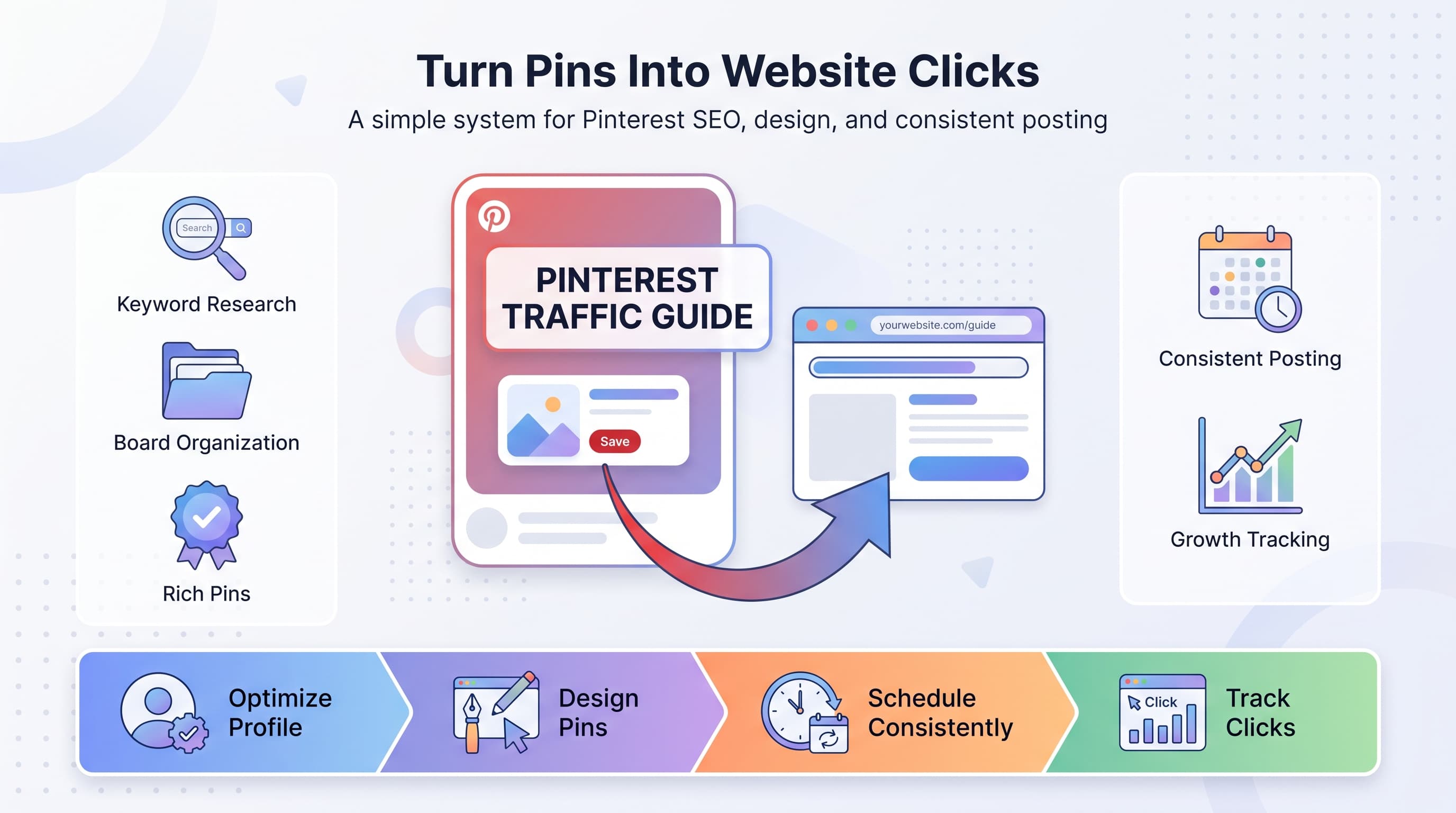
Most people treat Pinterest like a mood board app. That's a mistake, and it's probably why your pins aren't sending anyone to your site. Learn more about Pinterest scheduling.
See It in Action
This is what scheduling a Pinterest post looks like in Schedulala
Pinterest isn't a social network in the way Instagram or TikTok are. It behaves more like a visual search engine, closer to Google than to Facebook. People come to Pinterest already looking for something: a recipe, a workout routine, a bathroom renovation idea, a font pairing. If your pin answers that search, you get the click. If it doesn't, it gets scrolled past no matter how pretty it looks. Our scheduling across platforms can help.
This guide breaks down exactly how to set up your account, design pins that people actually click, write descriptions that rank, and build a posting rhythm that keeps traffic flowing to your website month after month. Try our pinterest content strategy what.
Try Schedulala for free
Schedule posts to Bluesky, Twitter, and 8 other platforms from one dashboard.
Get started for free→Why pinterest traffic behaves differently than other platforms
Before you touch a single pin design, it helps to understand what makes Pinterest an unusual referral source. On Instagram or Twitter/X, a post has a shelf life of hours. On Pinterest, a well-optimized pin can keep pulling in clicks for months, sometimes years, because the platform's algorithm re-surfaces content based on relevance, not just recency. Learn more about batch content creation.
That changes your strategy completely. Instead of chasing trends and posting constantly to stay visible, you're building a searchable library of content that keeps working long after you hit publish. It also means keyword research matters more here than almost any other platform you're posting to. Our best time to post on pinterest can help.
Another difference: Pinterest users are in a shopping or planning mindset far more often than users on other platforms. Someone searching "small kitchen storage ideas" is closer to making a decision (and clicking through to a blog or product page) than someone scrolling their Instagram feed for entertainment. That intent is exactly why Pinterest can outperform other channels for website referrals when it's done right. Learn more about pinterest bio generator.
Step 1: set your account up to actually drive clicks
1. Switch to a Pinterest business account
A personal Pinterest account can't show you analytics, can't run ads, and won't let you claim your website. If you're serious about traffic, this is non-negotiable. Business accounts are free to create and take about two minutes to set up.
Once you're on a business account, you unlock the Pinterest Analytics dashboard, which shows impressions, saves, outbound clicks, and top-performing pins. That data is what tells you whether a pin is actually driving people to your site or just getting saved and forgotten.
2. Claim your website
Claiming your website links your domain to your Pinterest profile. Anyone who pins directly from your site gets your profile photo and name attached to their pin, which builds trust and drives more traffic back to your account.
You claim a site by adding a small meta tag to your website's HTML or by uploading an HTML file Pinterest provides. Most website builders (WordPress, Shopify, Squarespace) have a plugin or setting that handles this in a few clicks.
3. Turn on rich pins
Rich pins automatically pull metadata from your website (title, description, and in some cases price and availability) directly onto the pin. This makes your pins look more credible and gives people more reason to click through instead of just saving and moving on.
There are article rich pins and product rich pins. If you run a blog, article pins are the ones you want. If you sell products, product pins show pricing right on the pin, which filters out window shoppers and sends more qualified traffic to your store.
Step 2: pinterest seo, the part most people skip
Pinterest's algorithm reads text, not images. It doesn't know your pin shows a perfectly styled desk setup unless your title, description, and board name tell it so. If you skip keyword research, you're relying on luck.
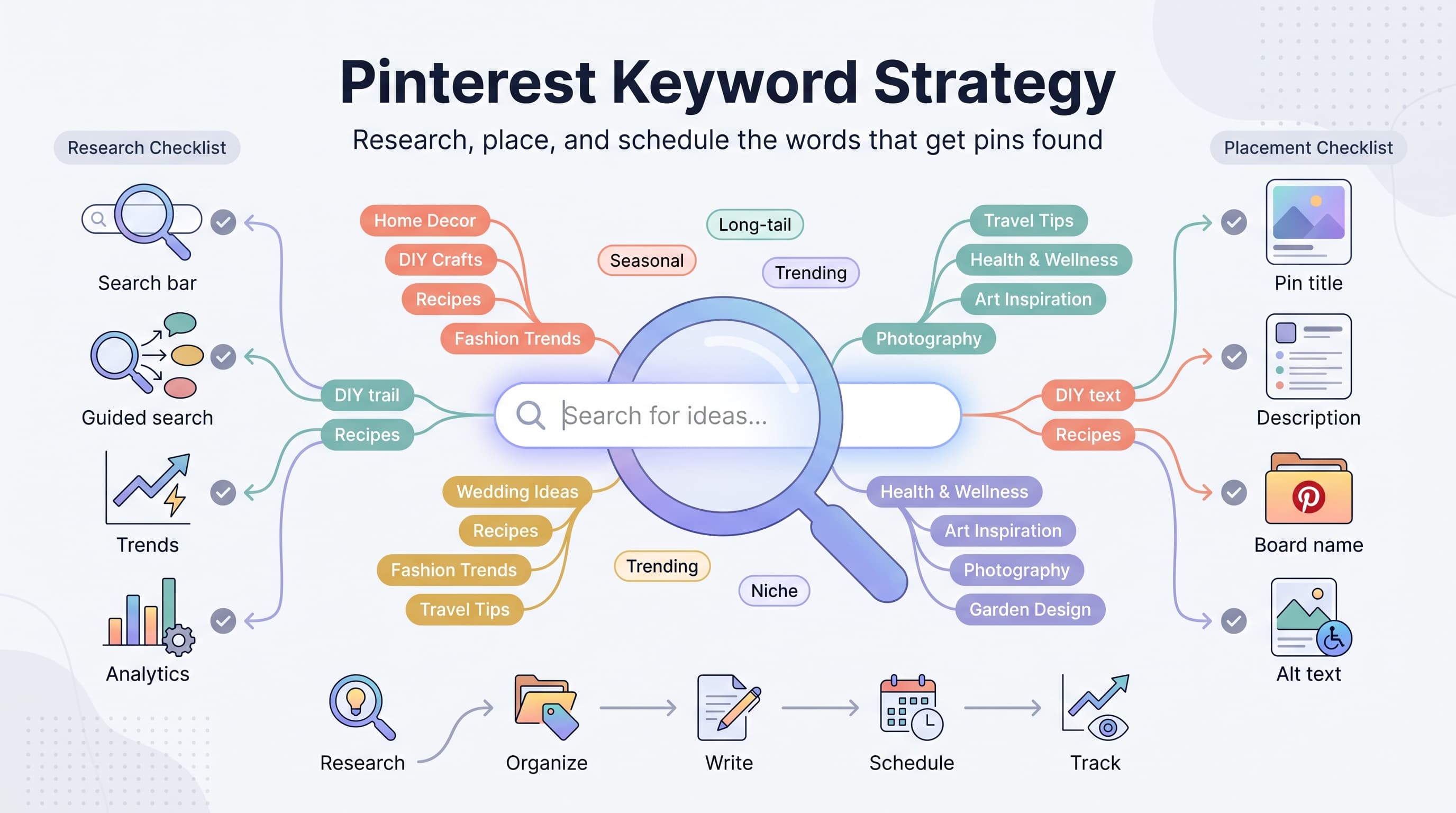
1. Research keywords using Pinterest's own search bar
Type a broad term related to your niche into the Pinterest search bar and look at the autocomplete suggestions. These are real phrases people are actively searching, straight from Pinterest's own data. Do the same thing inside the search bar after you've typed a term, then check the related pins carousel at the bottom of the results page for more specific long-tail phrases.
Keep a running list of keywords by topic. If you write a lot of content around meal planning, for example, you might collect phrases like "weekly meal prep for beginners," "budget meal plan for family of 4," and "high protein meal prep ideas." These become the backbone of your titles and descriptions.
2. Optimize your profile and board names
Your profile description and board titles are searchable too. A board named "Fun Stuff" tells the algorithm nothing. A board named "Budget-Friendly Meal Prep Recipes" tells it exactly who to show it to.
Write a keyword-rich profile bio that describes what you post about and who it's for. Do the same for every board description, using natural language rather than a stuffed list of keywords.
3. Write pin titles and descriptions like search results
Your pin title has around 100 characters, and your description gives you more room to add context. Lead with your primary keyword, then explain the value in plain language. Think of it the way you'd write a search-friendly blog title: specific, benefit-driven, and honest about what the click delivers.
Example of a weak title: "My favorite recipe." Example of a strong title: "15-Minute Garlic Butter Shrimp Recipe (One Pan, Weeknight Dinner)." The second one tells both Pinterest's algorithm and a human exactly what they're getting.
Step 3: design pins that actually earn the click
A gorgeous pin that doesn't convert to a click is a wasted asset. Design matters, but it needs to serve one job: getting the person to tap through to your website. Here's what consistently performs well.
1. Use the 2:3 vertical ratio
Pinterest's feed is built around vertical images, typically around 1000 x 1500 pixels. Square or horizontal images get cropped or shrunk in the feed, which makes them easy to scroll past. Stick to the vertical format every time.
2. Put text overlay on the image
People scroll Pinterest fast. A short, bold text overlay (your keyword or main benefit) lets someone understand your pin in half a second without reading a caption. Keep it to one clear headline, not a paragraph crammed onto the image.
3. Show the outcome, not just the process
If you're pinning a recipe, show the finished plated dish, not a blurry ingredient photo. If you're pinning a home organization idea, show the after, not the before. People click based on what they want to achieve, so lead with the result.
4. Brand it lightly, but don't over-brand it
A small logo or consistent color palette builds recognition over time. But a pin that looks like a brochure, with logos, disclaimers, and cluttered text everywhere, feels like an ad and gets scrolled past. Keep branding subtle and let the image do the selling.
Step 4: build a posting rhythm that compounds
Pinterest rewards consistency more than volume. Pinning 50 pins in one day and then going quiet for two weeks tells the algorithm nothing reliable about your account. Pinning a steady handful of pins most days signals an active, trustworthy account, which tends to get more distribution over time.
Most creators who see steady Pinterest traffic post somewhere between 3 and 10 pins per day, mixing fresh content with re-pins of older posts that are still performing well in Pinterest Analytics. The exact number matters less than the consistency behind it.
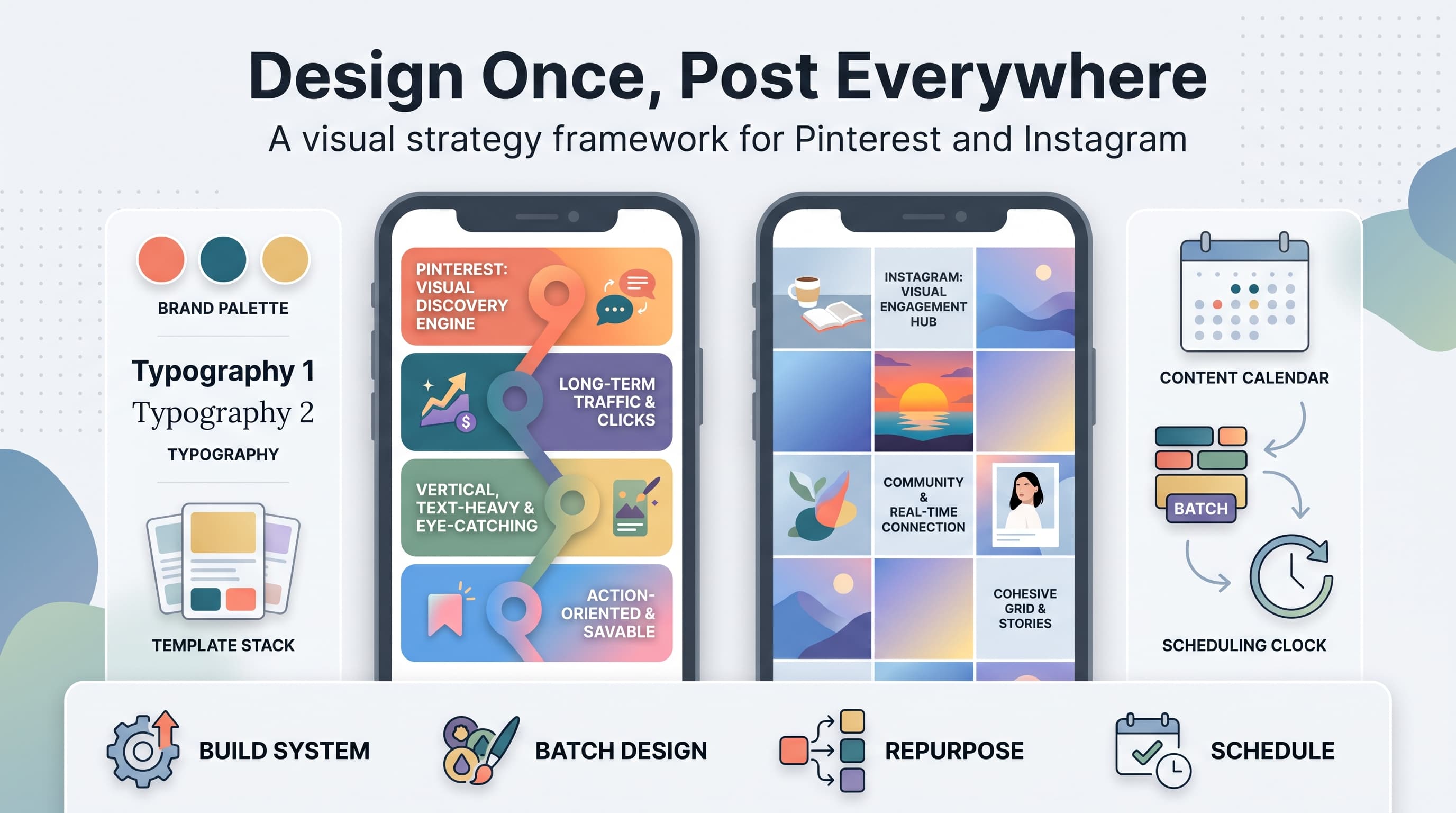
This is where a lot of people burn out. Manually uploading pins every day, writing new titles and descriptions each time, and remembering to space them out is a real time sink. If you're already scheduling content across other platforms, it makes sense to bring Pinterest into that same workflow instead of managing it separately in a browser tab.
Schedulala supports Pinterest alongside 11 other platforms (Instagram, TikTok, Twitter/X, LinkedIn, YouTube, Facebook, Threads, Bluesky, Telegram, Mastodon, and Google Business Profile), so you can queue up a week or a month of pins in one sitting and let them go out on a schedule that keeps your account active without you sitting at your laptop every single day. Every Schedulala plan includes unlimited scheduled posts, so there's no cap that forces you to ration your pinning strategy.
Try Schedulala for free
Schedule posts to Bluesky, Twitter, and 8 other platforms from one dashboard.
Get started for free→Step 5: use boards as traffic funnels, not junk drawers
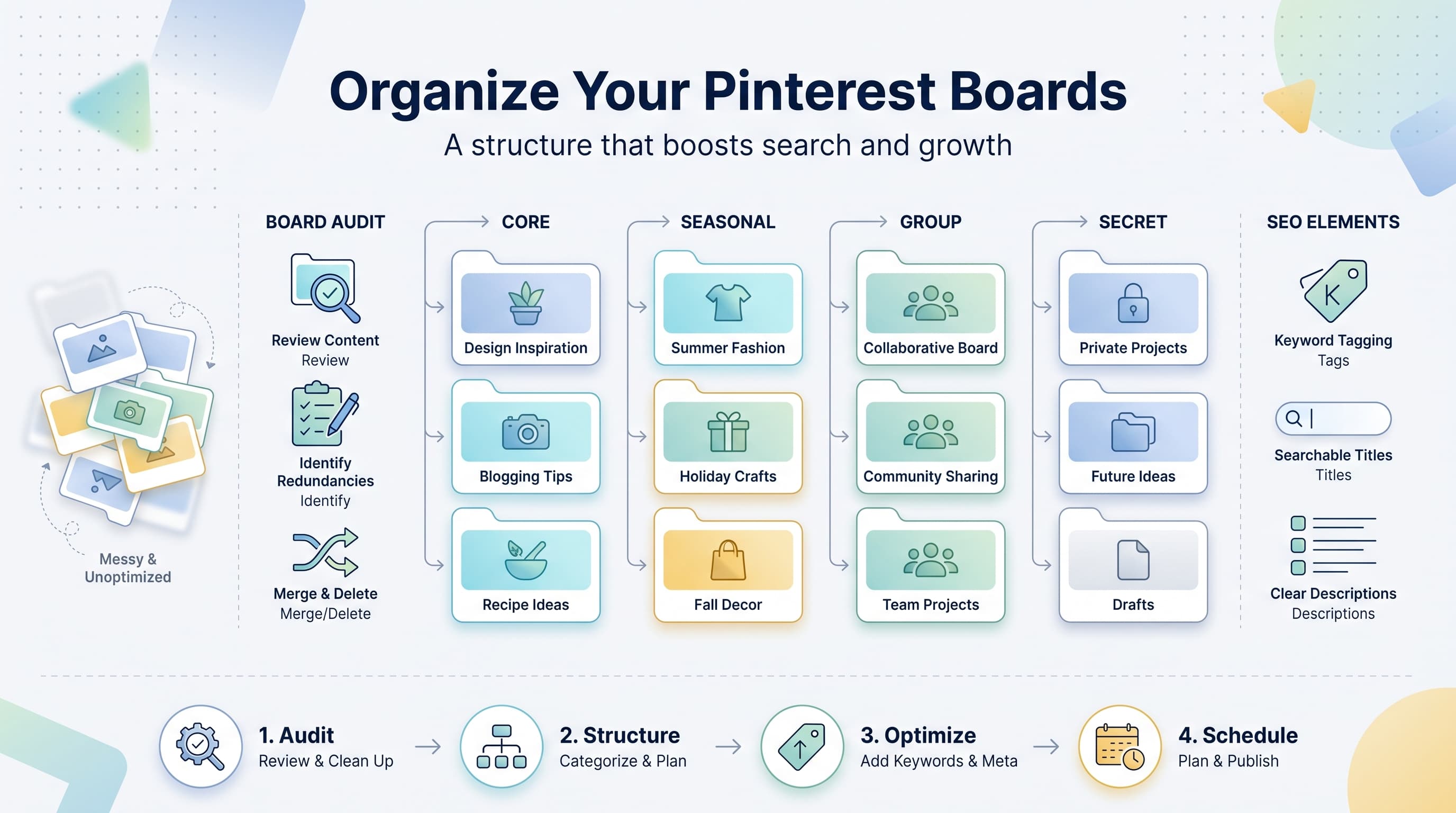
A lot of accounts have five or six boards with vague names and hundreds of unrelated pins dumped in each one. That's a missed opportunity. Well-organized boards act like categories on your website: they help both the algorithm and real people find exactly the kind of content you make.
- Create boards around specific topics, not broad ones. "Home Decor" is too broad. "Small Apartment Living Room Ideas" is specific enough to rank and specific enough to attract the right audience.
- Order your boards with your most valuable, most frequently searched topics first. Pinterest and visitors both scan top to bottom.
- Pin your own content to relevant boards first, then supplement with a smaller amount of curated content from other creators in the same niche.
- Archive or hide boards that no longer match your content strategy instead of deleting them outright, since deleting can remove valuable saved history.
Step 6: track what's actually driving traffic
Pinterest Analytics (found under the business account dashboard) shows you impressions, saves, and outbound clicks for every pin. Outbound clicks are the metric that matters most here, since that's the number that tells you how much traffic is landing on your website.
Check this weekly, not daily. Pinterest content takes time to gain momentum, sometimes weeks, so judging a pin's performance after 48 hours will give you a misleading picture. Look for patterns instead: which topics, which headlines, and which image styles consistently pull outbound clicks, then make more content that matches that pattern.
It also helps to check Google Analytics (or whatever analytics tool your site uses) and filter referral traffic by source. This confirms what Pinterest's own dashboard is telling you and shows you what people do once they land on your site, whether they bounce immediately or stick around and read.
| Metric | What it tells you | What to do with it |
|---|---|---|
| Impressions | How many people saw the pin | Low impressions may mean weak keywords or an inactive board |
| Saves | How many people bookmarked it | High saves with low clicks means the image is strong but the offer or headline needs work |
| Outbound clicks | How many people visited your site | This is your real traffic number, track it over time by topic |
| Pin click rate | Percentage of viewers who clicked through | Use this to compare pin designs against each other |
Common mistakes that kill pinterest traffic
Pinning without a destination URL
Every single pin should link somewhere specific: a blog post, a product page, a landing page. Pins that link to your homepage or, worse, don't link anywhere at all, waste an opportunity for a direct click to relevant content.
Treating Pinterest like Instagram
Lifestyle selfies, behind-the-scenes content, and personal updates rarely perform on Pinterest the way they do on Instagram. Pinterest users come with a task in mind. Keep your content useful, instructional, or inspirational in a concrete way.
Ignoring seasonal timing
Pinterest users plan ahead, often 30 to 90 days before an event. Holiday content, back-to-school content, and seasonal decor ideas need to go up well before the actual date, not the week of.
Letting old, high-performing pins go stale
If a pin has been driving steady traffic for months, don't just leave it alone forever. Refresh the image or headline periodically and re-pin it, especially if your website content behind it has been updated.
Posting inconsistently
Going quiet for weeks and then flooding your account with 40 pins in one afternoon reads as spammy to the algorithm and confusing to real followers. A scheduled, steady cadence beats sporadic bursts every time.
Keeping pinterest consistent without it eating your whole week
The single biggest reason Pinterest strategies fail isn't bad design or weak keywords. It's inconsistency. Someone gets excited, pins 20 times in a week, sees decent results, and then life gets busy and the account goes quiet for a month. Traffic dries up right along with it.
This is exactly the kind of repetitive, calendar-dependent task that's easy to batch once and forget about. If you're managing Pinterest alongside Instagram, TikTok, LinkedIn, or any of the other platforms your business runs on, doing this manually across separate apps adds up to hours every week that could go toward actually creating content.
With Schedulala, you can plan out pins across your boards for the whole month in one sitting, drop in your keyword-optimized titles and descriptions ahead of time, and schedule everything from a single content calendar alongside the rest of your social channels. Personal plans start at $29/month for 10 social accounts, Team plans run $49/month for 25 accounts, and Agency plans are $99/month for 100 accounts, with a flat account count you can spend across any combination of the 12 supported platforms. Annual billing knocks two months off any of those plans. There's a 7-day free trial to test the workflow before committing, though a card is required to start it.
A simple 30-day starting plan
- Week 1: Switch to a business account, claim your website, turn on rich pins, and build your keyword list using Pinterest's own search bar.
- Week 2: Rebuild your board structure around specific, keyword-rich topics and write proper descriptions for each one.
- Week 3: Design 15 to 20 pins covering your best existing blog posts or product pages, using vertical images and clear text overlays.
- Week 4: Schedule everything out for the month ahead, check Analytics weekly, and note which pins are earning outbound clicks so you can create more like them.
This isn't a one-and-done project. Pinterest rewards accounts that keep showing up week after week with useful, well-tagged content. But the setup work you do in the first 30 days is what makes everything after it easier, since you're building on a foundation instead of guessing at keywords and formats every time you sit down to pin.
Try Schedulala for free
Schedule posts to Bluesky, Twitter, and 8 other platforms from one dashboard.
Get started for free→